

New: step-by-step guides for self-photoshoots, tripod photos and model digitals.Read the guides

Tripod photography

The iPhone tripod camera app that needs no remote

Tripod photos stall at the same point: the phone is steady, but the shutter is across the room. ViaCamera is an iPhone camera app that presses it for you while you stay on your mark.

Download on the App Store

ViaCamera is an iPhone app. Scan this code with your iPhone camera to open it in the App Store.

Open in the App Store
Person in a yellow jacket carries a camera tripod over one shoulder on a sunlit cliff

Short answer

ViaCamera is an iPhone tripod camera app that presses the shutter while you stand in the frame. Frame the shot on the tripod, tap the shutter once and walk to your mark. AI-FACE takes a photo when your face is in frame and your eyes are open, and AI-BODY when it sees you in frame. Every photo is a real one from your iPhone camera.

What makes tripod photos hard?

  • Running back to restart the timer

    Each new countdown means walking back to the phone. A long session turns into a lot of walking and very few relaxed moments.

  • A remote in your hand

    A Bluetooth clicker has to be held, hidden or tucked into a pocket. It shows up in photos or limits what your hands can do.

  • Not knowing if you were in frame

    When you press and hurry into place, you only find out later whether the frame caught you, or just the empty spot beside you.

  • Pairing and charging a remote

    A remote is one more thing to pair, charge and remember. It can be out of battery or left at home on the day you want it.

How ViaCamera helps on a tripod

  • No remote to hold or hide

    The tripod needs no remote to hold or hide and no timer to reset, because ViaCamera presses the shutter. You tap once to start, and it keeps taking photos each time it sees what the mode waits for, until you tap again to stop.

    Auto Shutter Camera App for iPhone
  • Full-length shots from a distance

    AI-BODY takes the photo when it sees you in frame, so you can stand back from the tripod and fit your whole outfit and the scene in the picture. AI-FACE suits closer portraits.

    Face Detection Camera App: AI-FACE and AI-BODY
  • A setup that is quick to repeat

    Mount the phone, frame the shot, choose AI-FACE, AI-BODY or PHOTO and tap once. It works with the front or the back camera.

    How an AI Camera Takes Photos by Itself

Why use an iPhone tripod camera app?

A tripod holds your iPhone still, which means you can frame the shot properly and step into it. What it cannot do is press the shutter. A phone tripod app handles that step, so you stay in the frame between photos instead of walking back to the phone.

The tripod and the app split the work. The legs, the clamp, the height and the light decide what the frame shows, and the guide to taking pictures with a phone tripod covers each of them. ViaCamera takes care of the shutter while you stay on your mark.

What does a tripod session with ViaCamera look like?

Lock in the frame

Open the legs on level ground, clamp the phone in the middle of the holder and set the lens at about eye level for a portrait or about chest height for a full-length frame. Frame the shot, then mark your spot on the floor. Because the tripod will not move, the frame stays the same for the whole session.

Choose the mode for the shot

For a close portrait, AI-FACE takes a photo when your face is in frame and your eyes are open. For a full-length shot from farther back, AI-BODY takes one when it sees you in frame. PHOTO is a regular manual shutter for anything else, and either camera works.

Walk to your mark and change one thing

Tap the shutter once and walk to your mark. ViaCamera keeps taking photos each time it sees what the mode waits for, until you tap again to stop. Change one thing between frames, such as your stance or your hands, and the fixed framing makes the run easy to compare.

Where should you go next?

If you are choosing between methods, the guide to tripod photos without a remote compares them. The comparison of ViaCamera with a Bluetooth remote and an Apple Watch sets the remote options side by side. If you are working out the distance, read the guide to tripod height and distance for full-body photos.
Tripod shots to try

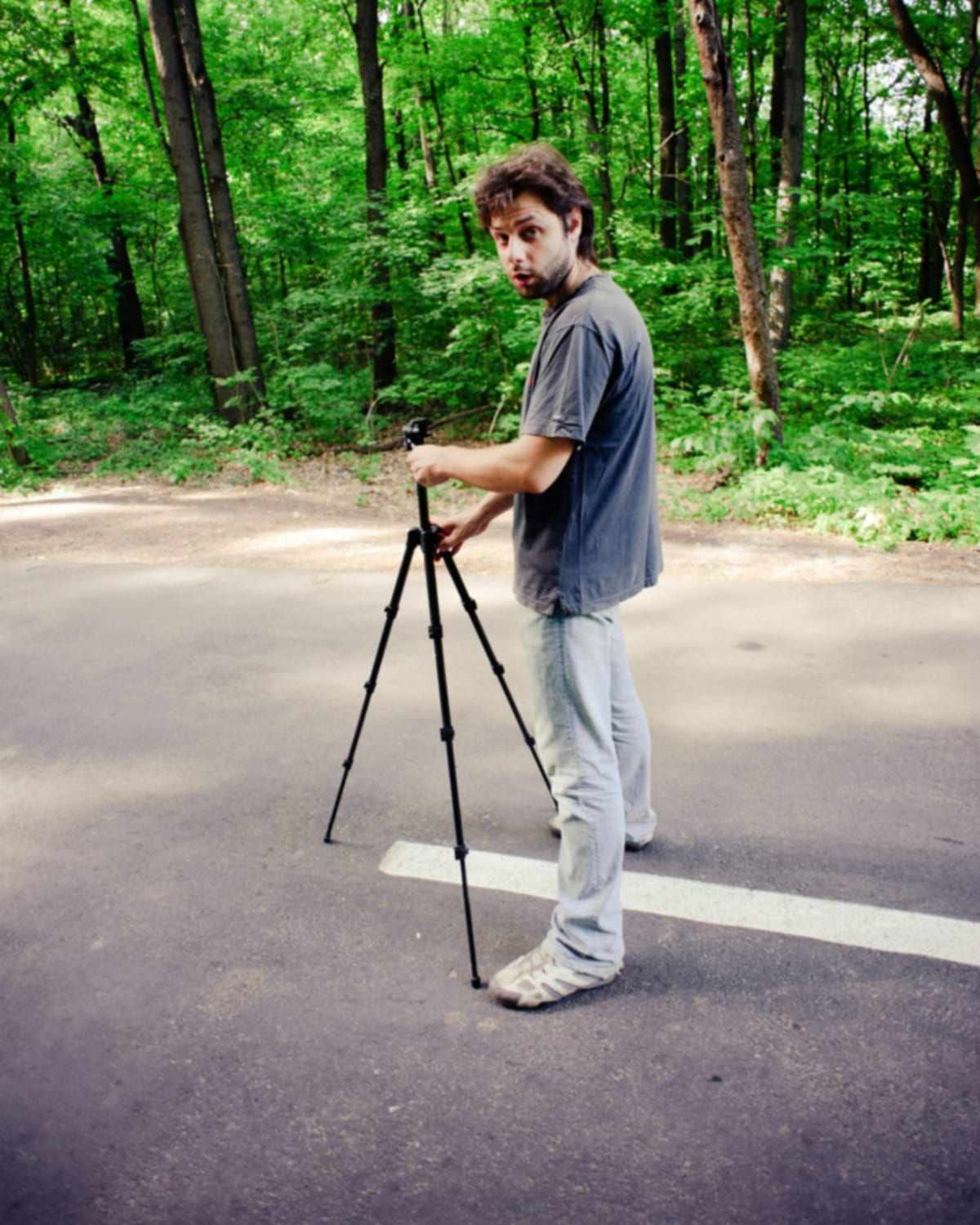
  • Man in a grey t-shirt stands on a quiet road beside a tripod

    Stepping back into frame

    Mount the phone at about waist to chest height, frame it vertically and step back to a marked spot. AI-BODY is the mode to try for a full-length frame like this.

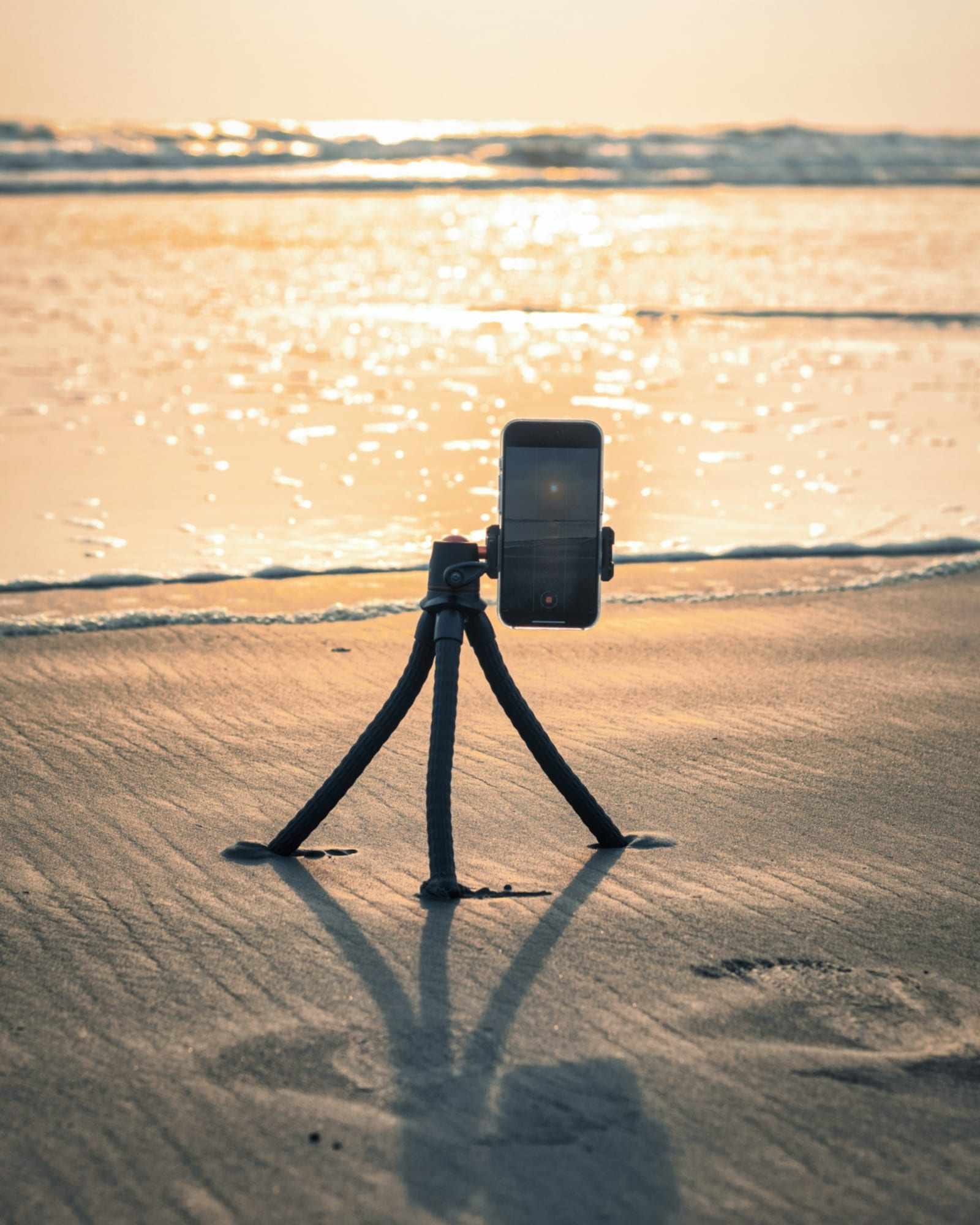
  • Phone on a flexible tripod stands on a sandy beach at sunset

    A closer portrait

    Raise the lens to about eye level, check the clamp is centered and fill the frame with your head and shoulders. AI-FACE is the mode to try for a closer frame.

Start here

Frequently asked questions

What is the best camera app for a tripod?
What matters is how the shutter fires, since the tripod already holds the phone. The Camera app's timer is free and built in, and the Camera Remote app on an Apple Watch or AirPods on supported models can press the shutter from a distance. ViaCamera takes the photo itself when it sees you in frame, which suits long solo sessions.
Can I take tripod photos without a remote?
Yes. The Camera app's timer, the Camera Remote app on an Apple Watch and AirPods on supported models all work without a separate remote. ViaCamera is another option: tap the shutter once, step into the frame, and it takes a photo each time it sees what the mode waits for.
Does ViaCamera work with any tripod?
Yes. ViaCamera is a camera app, so it works with any tripod that holds your iPhone steady. A full-height tripod, a tabletop tripod or a flexible one all do the job, as long as the clamp grips the phone and the legs are level.
Does it work with the back camera?
Yes. ViaCamera works with the front and the back camera. The back camera usually gives the better photo, but then the screen faces away from you, so take a test photo, check the framing and adjust before the real session.

Try a tripod session with ViaCamera

Free to download, with a 1-month free trial for new subscribers.

Download on the App Store

ViaCamera is an iPhone app. Scan this code with your iPhone camera to open it in the App Store.

Open in the App Store